
从零开始的Fyne(六):系统托盘菜单、双向绑定、编译参数
系统托盘菜单/System Tray Menu
添加托盘菜单
Since the v2.2.0 release Fyne has built in support for a system tray menu. This feature displays an icon on macOS, Windows and Linux computers and when tapped will pop out a menu as specified by the app.
As this is a desktop specific feature we must first do a runtime check that the app is running in desktop mode. To do this, and get a reference to the desktop features, we do a Go type assertion:
	if desk, ok := a.(desktop.App); ok {
...
	}
If the
okvariable is true then we can set up a menu using the standard Fyne menu API that you might have used inWindow.SetMainMenubefore.
		m := fyne.NewMenu("MyApp",
			fyne.NewMenuItem("Show", func() {
				log.Println("Tapped show")
			}))
		desk.SetSystemTrayMenu(m)
With this code added to the setup of your application you can run the app and see that it shows a Fyne icon in the system tray. When you tap it a menu will appear containing “Show” and “Quit”.
The default icon is the Fyne logo, you can either fix this using app metadata or by setting the app icon in
App.SetIconor for system tray directly usingdesk.SetSystemTrayIcon.
代码示例与演示
func loadFlag() (flag string) {
    filename := "./secrets/flag.txt"
    flagBytes, _ := os.ReadFile(filename)

    return string(flagBytes)
}

func SetContentToTrayMenu(win fyne.Window, app fyne.App) {
    quit := tools.CreateQuitButtonWithConfirm(win, app)

    var openDialogForm *widget.Button // 折叠一下之前的代码
    {
       flag := loadFlag()
       // fmt.Printf("%v\n", flag)
       flagDialog := dialog.NewInformation("flag", flag, win)
       flagDialog.SetDismissText("好吧")

       usernameEntry := widget.NewEntry()
       usernameEntry.Validator = func(s string) error {
          switch {
          case s == "":
             return fmt.Errorf("用户名不能为空")
          case s == "admin":
             return nil
          default:
             return fmt.Errorf("用户名错误")
          }
       }
       passwdEntry := widget.NewPasswordEntry()
       passwdEntry.Validator = func(s string) error {
          switch {
          case s == "":
             return fmt.Errorf("密码不能为空")
          case s == "admin":
             return nil
          default:
             return fmt.Errorf("密码错误")
          }
       }
       dialogForm := dialog.NewForm("登录", "验证身份", "我再想想", []*widget.FormItem{
          widget.NewFormItem("用户名", usernameEntry), // dialog自动监听表单项的状态, 只要校验不通过, 确认按钮就会被disable
          widget.NewFormItem("密码", passwdEntry),
       }, func(b bool) {
          if !b {
             return
          }

          if usernameEntry.Text != "admin" || passwdEntry.Text != "admin" {
             dialog.ShowError(fmt.Errorf("用户名或密码错误"), win)
             return
          }

          flagDialog.Show()
       }, win)
       openDialogForm = widget.NewButton("看看flag", func() {
          dialogForm.Show()
       })
    }

    // 判断是否为桌面程序,是的话才可以设置系统托盘菜单
    if desk, ok := app.(desktop.App); ok {
       menu := fyne.NewMenu("App", fyne.NewMenuItem("log一下", func() {
          log.Printf("用户点击了一下按钮")
       }))

       desk.SetSystemTrayMenu(menu)
    }
    win.SetContent(container.NewBorder(
       // top
       nil,
       //  bottom
       container.NewHBox(quit),
       // left
       container.NewVBox(openDialogForm),
       // right
       nil,
       // center
       nil,
    ))
}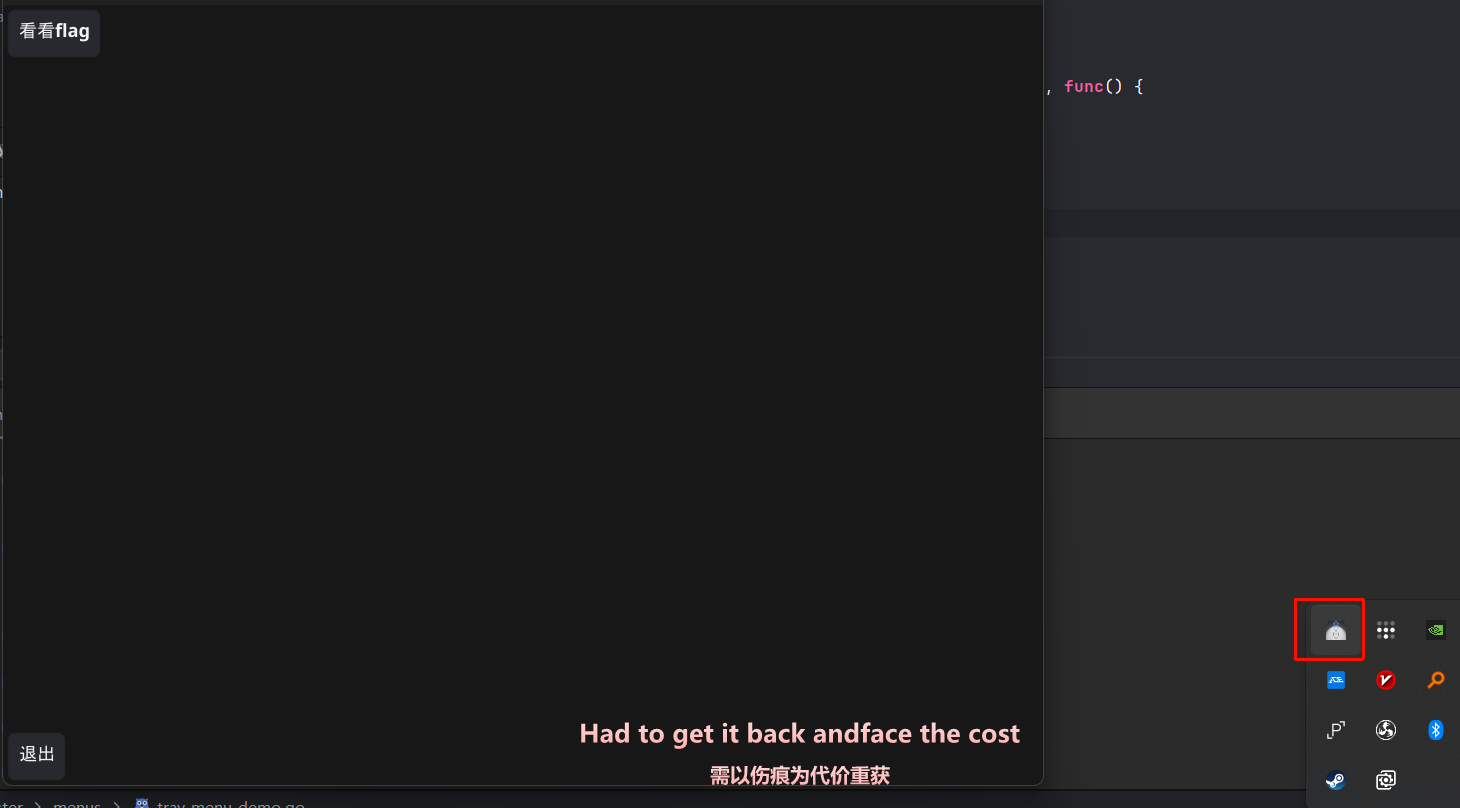
日志是看不到的,因为程序是后台运行的……而且此Quit非彼Quit,这时候关闭窗口不会自动退出程序……
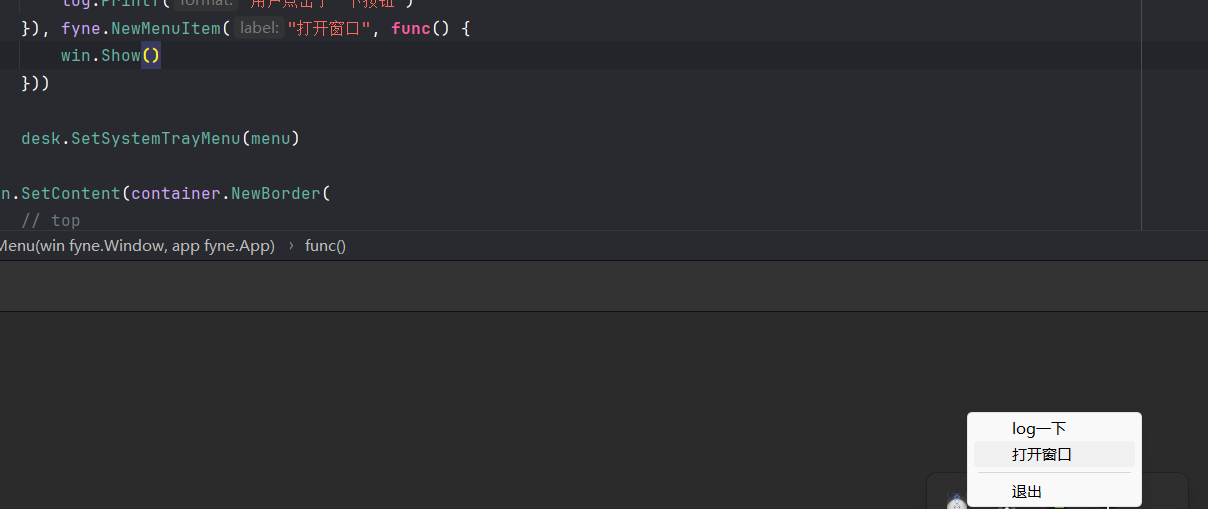
加了也没用,加了也打不开窗口……
窗口生命周期管理
By default a Fyne app will exit when you close all windows and this may not be what you want with a system tray app. To override the behaviour you can use the
Window.SetCloseInterceptfeature to override what happens when a window is closed. In the example below we hide the window instead of closing it by callingWindow.Hide(). Add this before you show the window for the first time.
	w.SetCloseIntercept(func() {
		w.Hide()
	})
// Show the window on screen.
Show()
// Hide the window from the user.
// This will not destroy the window or cause the app to exit.
Hide()
// Close the window.
// If it is he "master" window the app will Quit.
// If it is the only open window and no menu is set via [desktop.App]
// SetSystemTrayMenu the app will also Quit.
Close()The benefit of hiding a window is that you can simply show it again using
Window.Show()which is much more efficient than creating a new window if the same content is needed a second time. We update the menu created earlier to show the window that was hidden above.
	fyne.NewMenuItem("Show", func() {
		w.Show()
	}
完整代码
package main

import (
	"fyne.io/fyne/v2"
	"fyne.io/fyne/v2/app"
	"fyne.io/fyne/v2/driver/desktop"
	"fyne.io/fyne/v2/widget"
)

func main() {
	a := app.New()
	w := a.NewWindow("SysTray")

	if desk, ok := a.(desktop.App); ok {
		m := fyne.NewMenu("MyApp",
			fyne.NewMenuItem("Show", func() {
				w.Show()
			}))
		desk.SetSystemTrayMenu(m)
	}

	w.SetContent(widget.NewLabel("Fyne System Tray"))
	w.SetCloseIntercept(func() {
		w.Hide()
	})
	w.ShowAndRun()
}
数据绑定
Data binding was introduced in Fyne v2.0.0 and makes it easier to connect many widgets to a data source that will update over time. the
data/bindingpackage has many helpful bindings that can manage most standard types that will be used in an application. A data binding can be managed using the binding API (for exampleNewString) or it can be connected to an external item of data like (BindInt(*int)).
Widgets that support binding typically have a
...WithDataconstructor to set up the binding when creating the widget. You can also callBind()andUnbind()to manage the data of an existing widget. The following example shows how you can manage aStringdata item that is bound to a simpleLabelwidget.
package main

import (
	"time"

	"fyne.io/fyne/v2/app"
	"fyne.io/fyne/v2/data/binding"
	"fyne.io/fyne/v2/widget"
)

func main() {
	a := app.New()
	w := a.NewWindow("Hello")

	str := binding.NewString()
	go func() {
		dots := "....."
		for i := 5; i >= 0; i-- {
			str.Set("Count down" + dots[:i])
			time.Sleep(time.Second)
		}
		str.Set("Blast off!")
	}()

	w.SetContent(widget.NewLabelWithData(str))
	w.ShowAndRun()
}
You can find out more in the data binding section of this site.
可选的编译参数
编译标签
Fyne will typically configure your application appropriately for the target platform by selecting the driver and configuration. The following build tags are supported and can help in your development. For example if you wish to simulate a mobile application whilst running on a desktop computer you could use the following command:
go run -tags mobile main.go| Tag | Description |
|---|---|
debug | Show debug information, including visual layout to help understand your app. |
flatpak | Build with improved support for running inside the Flatpak sandbox on Linux. |
gles | Force use of embedded OpenGL (GLES) instead of full OpenGL. This is normally controlled by the target device and not normally needed. |
hints | Display developer hints for improvements or optimisations. Running with hints will log when your application does not follow material design or other recommendations. |
mobile | This tag runs an application in a simulated mobile window. Useful when you want to preview your app on a mobile platform without compiling and installing to the device. |
no_animations | Disable the non-essential animations in standard widgets and containers. |
no_emoji | Don’t include the embedded emoji font. This will disable emoji in your app but will make the binary smaller. |
no_metadata | Disable runtime lookup of metadata from FyneApp.toml source files. This is always disabled for release builds. |
no_native_menus | This flag is specifically for macOS and indicates that the application should not use the macOS native menus. Instead menus will be displayed inside the application window. Most useful for testing an application on macOS to simulate the behavior on Windows or Linux. |
wayland | Build with support for the Wayland window protocol instead of X11. Only relevant on Linux and BSD systems. |